

OverviewInstructionsResourcesActivity Management
Picasa is an image editing software from Google that helps you organize, edit, and share your photos. It’s free, and easy to use and works on both PC and Mac. The program is free and has many features that you’d typically have to use an advanced image editor such as Photoshop in order to make those same changes without Picasa.
Units |
Online and Social Media Resources, Presentation Tools |
Duration |
2 hours |
Standards |
Communication, Cultures |
LEVEL |
Advanced, Beginner, Intermediate, Novice |
WEBSITE |
Visit Picasa Website |
OS |
PC or Mac |
PREREQUISITES
- Basic use of Internet
- Downloading files
OBJECTIVES
At the end of the lesson, participants will be able to
-
Explain what Picasa is and why it is useful to leanguage teachers
-
List the kind of tasks that would be appropriate for their students using Picasa.
-
Explain how to design tasks focused on student collaboration.
-
Give an example of one activity in a lesson plan using Picasa in alignment with the Standards for Foreign Language Learning.
-
Describe how to assess students’ learning progress using Picasa.
-
Critique the effectiveness for language teaching of other Picasa projects.
-
Download Picasa and create their own Picasa projects.
MATERIALS NEEDED
- Images to edit
Step-By-Step Instructions
Downloading and Installing Picasa
- Go to Picasa.google.com
- Click on the Download button on the right side of the screen to download and install the picasa_setup.exe file
- Click on Picasa shortcut installed on your computer to launch Picasa
- When launch Picasa for the first time, choose the settings for scanning pictures. If you want to change the scanning setting, go to Tools-Folder Manager
- Decide if you want ot use Picasa Photo Viewer as your default photo viewer
Exploring Picasa Interface
- Library View-The left column: it is used to navigate the folders and their contents. Folders are Picasa’s built in collection which display the folders on your computer that contain pictures and videos. By default, the collection of pictures in the folder is sorted by date

- Library View – The top buttons: Click button 1 to get photos from a camera, scanner, or other media; click on button 2 to create a new album; click on button 3 to show flat folder structure in the folders, click on button 4 to show folder tree structure; click on button 5 to set view option

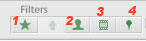
- Librarey View – More top buttons: Click button 1 to show starred photos; click on button 2 to show photos with faces; click on button 3 to show movies only, click on button 4 to show photos with geotag; type the word you want to search in the search field

- Library View -The central column: it display the contents from folder list or results from your search or filtered search

- The Library View – Lower Part: it contains the control for zooming and the buttons of icons for specific tasks you want to take on the photos


Editing Photos
- Double-click on a picture in the central display area to open the “Edit Picture” screen. This will
show you the picture you’re currently editing. To the right of the picture are three tabs – - “Basic Fixes,” “Tuning,” and “Effects.” Click on any button in the Basic Fixes area to apply that setting to the picture, for some settings, you have to drag and drop and then click on the Apply button to accept the change. Click on the Cancel button to cancel your change.

- Click on the other two tabs: Tuning and Effects to apply more editing. While on the “Edit Picture” screen, use the thumbnail arrows at the top of the picture to navigate through the rest of the pictures in that folder or album.
- To reverse any edits you made, click the Undo button at any step along the way
- Any edits you make to a picture are only inside Picasa; edits do NOT affect the original file on your computer’s hard drive. To see edited pictures in other programs outside of Picasa, you’ll need to export the picture using the specific tasks and controls in the lower part of screen
Showing Your Pictures
There are different ways to present your pictures: slideshow, movie presentation, etc.
- Create a new album
- Move the photos of your choice into the album
- click on any of these buttons below to show your pictures

For more infomation on using Picasa, go to the following sites:
Additional Resources and Works Cited
Activity Management
- Narrate what kind of Picasa project and tasks students will perform.
- Explain how to make tasks focused on student collaboration.
- Workshop participants create their own Picasa project .
- Workshop participants share their Picasa project online.
- Discuss how to assess student performance.