

OverviewInstructionsResourcesActivity Management
Voxopop is an asynchronous voice tool that can be used for conversations or storytelling.
Units |
Audio Tools, Collaborative Tools, Presentation Tools |
Duration |
1 hour |
Standards |
Communication, Communities |
LEVEL |
Advanced, Beginner, Intermediate |
WEBSITE |
Visit Voxopop Website |
OS |
PC or Mac |
PREREQUISITES
- Basic use of Internet
- How to set up an account on line
- How to hook up a microphone on a computer
OBJECTIVES
- Explain Voxopop’s potential use for teaching listening and speaking.
- Comment on Voxopop creations by others.
- Sign up and create their own Voxopop
- Determine what kind of tasks would be appropriate for their language students
- Explain how to design Voxopop tasks focused on student collaboration.
- Share their Voxopop online
- Describe how they will assess students’ learning progress
- Talk about an example of one activity using Voxopop in alignment with the standards for language learning.
MATERIALS NEEDED
- Internet access (access to voxopop.com)
- Headset microphone
- .jpeg or .gif image to represent speaker
Step-By-Step Instructions
- Go to http://www.voxopop.com/
- Click Start a talk group tab on top

- To sign up, type in the information.
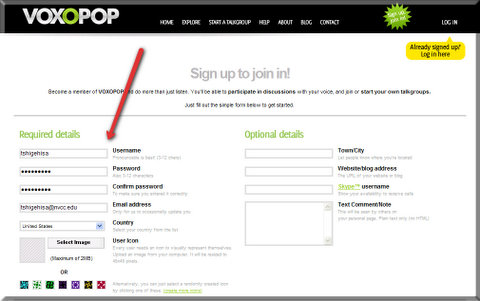
- Click Select Image to profile image.

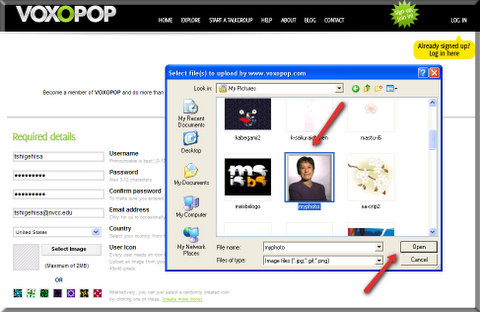
- Click the image you would like to use and Open.
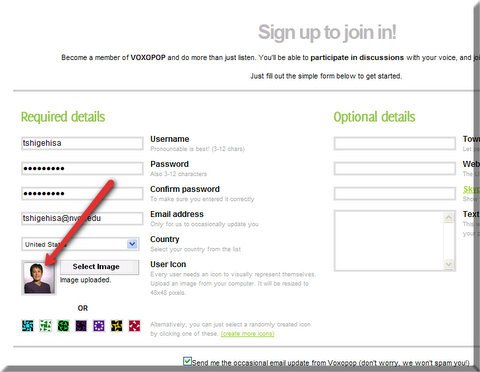
- Now you can see the image uploaded as your profile picture.
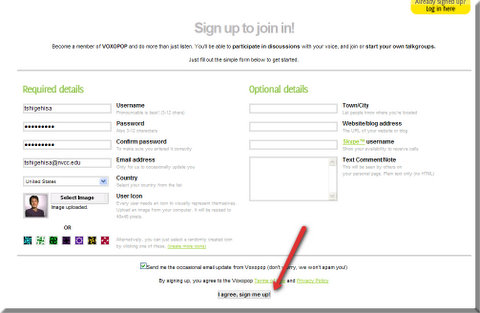
- Click I agree, Sign me.
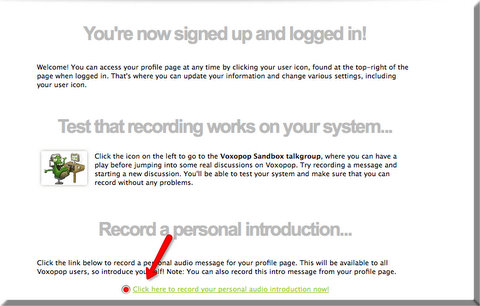
- Now you are logged in. Click here if you would like to record your personal introduction (optional).
- Click Start a Talkgroup tab on the top.
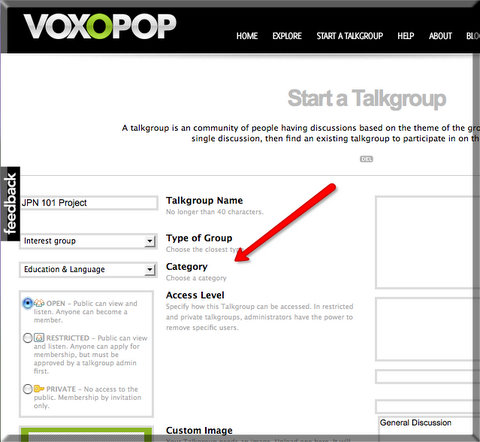
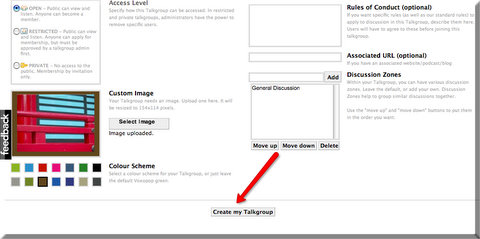
- Type in Talk group name, select Type of group, and Category.
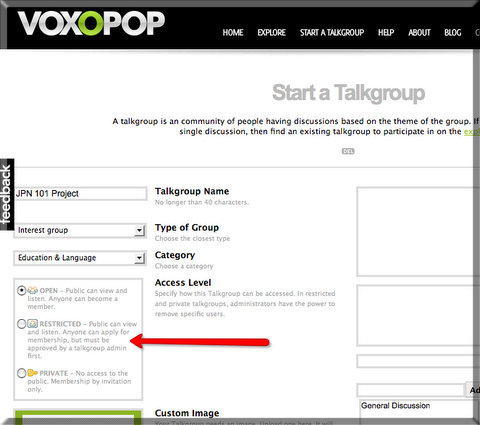
- Choose Access Level by clicking one of the options.
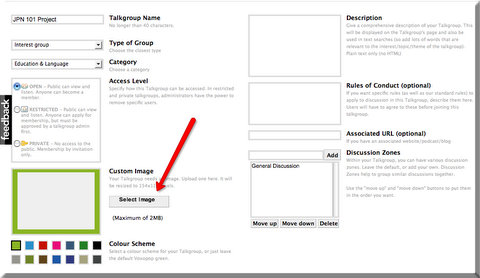
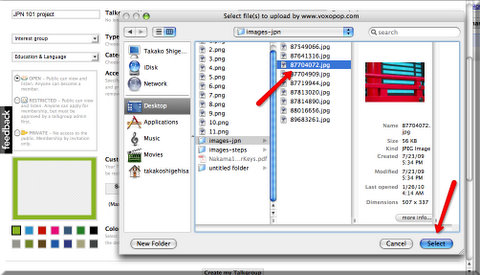
- Click Select Image to create the Talk Group Icon.
- Choose the image you would like to use and click Select.
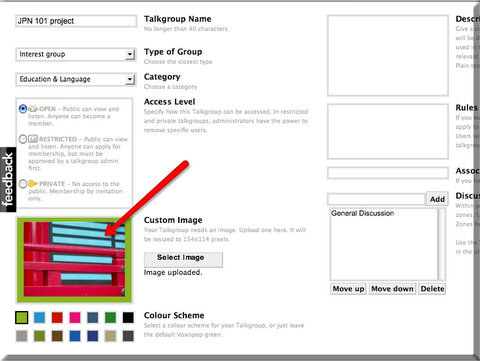
- Now you should be able to see the image for your talk group.
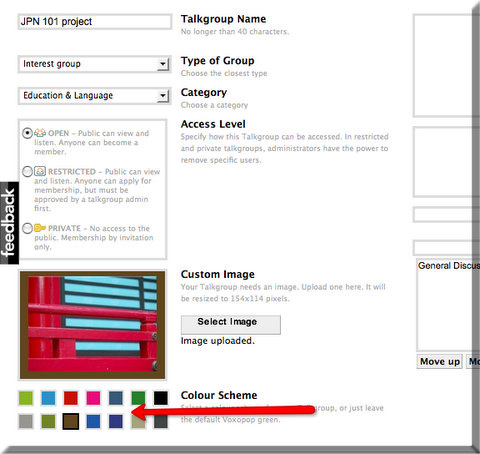
- Click any of the colors to set the color scheme.
- Type the information about your Talkgroup.
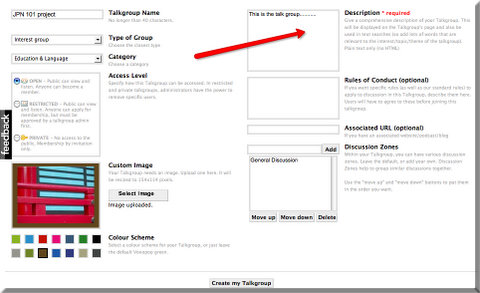
- Click Create my Talkgroup.
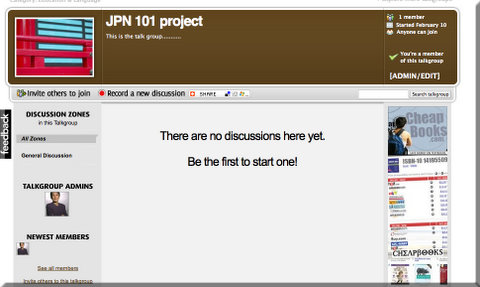
- Your Talkgroup will appear.
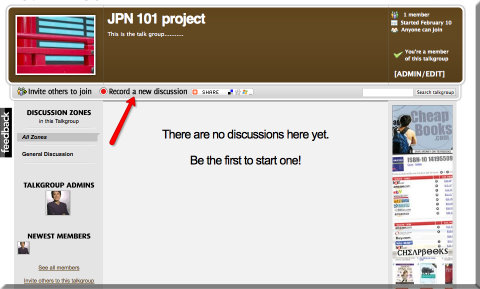
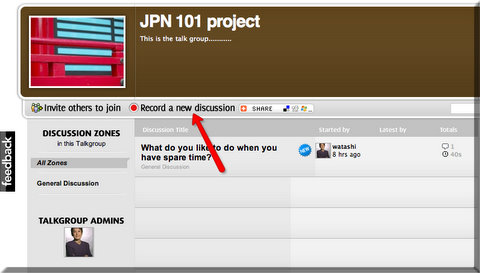
- Click Record a new discussion to start the discussion.
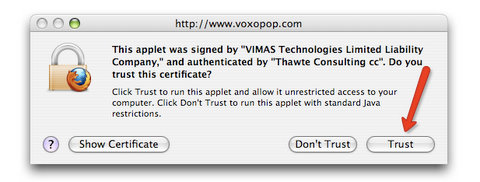
- Click Trust to allow Voxopop to be able to access to your microphone.
- Type in Discussion Title.
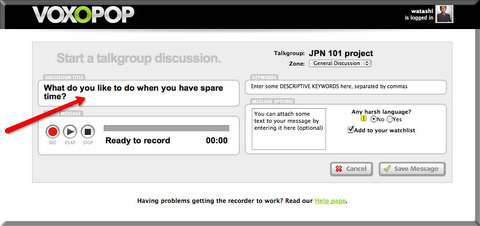
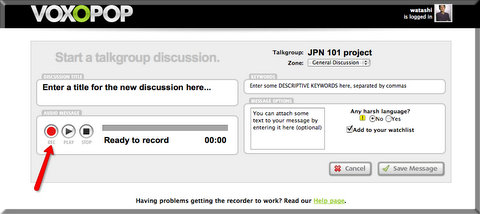
- Click REC red button to start recording.
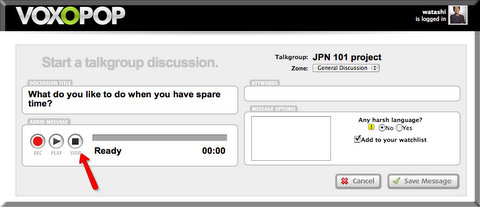
- Click Stop square button to stop recording.
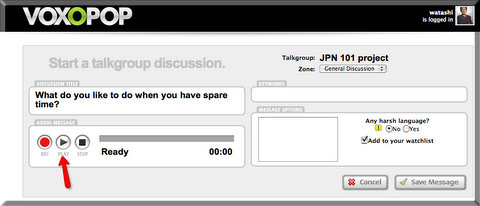
- Click Play button to listen to your recording. If you would like to re-record again, Click REC red button again.
It will re-record over what you recorded before.
- Type any text message you would like to appear with your recording (optional).
This might be used where you can see your transcript before you start recording for your reference.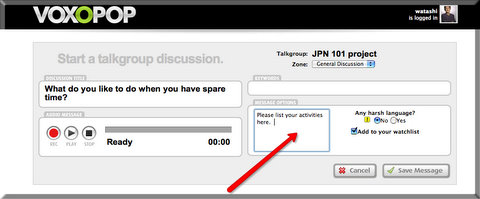
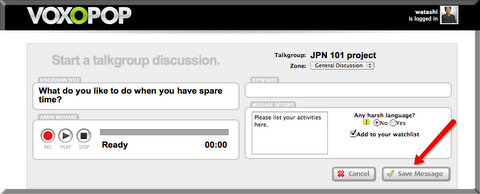
- Click Save Message when you are done.
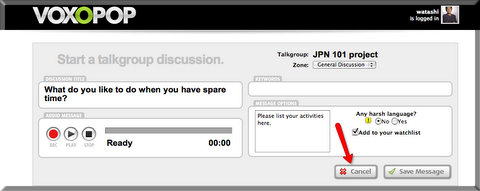
- Click cancel when you want to cancel the recording.
- Click The Talkgoup to see your Talkgroup.
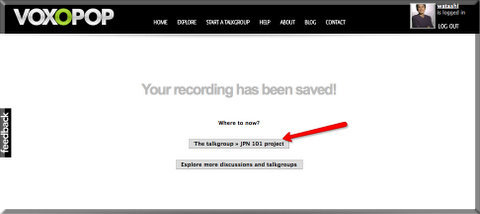
- Click your discussion title to see your Talkgroup.
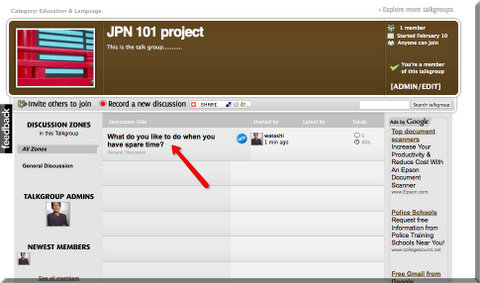
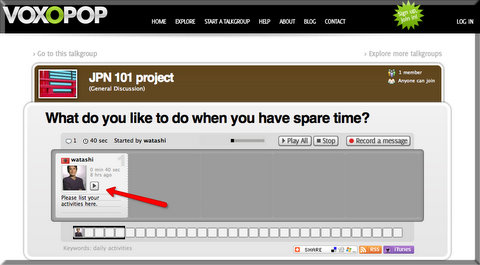
- You should see your TalkGroup with discussion title. Click arrow to listen to your recording.
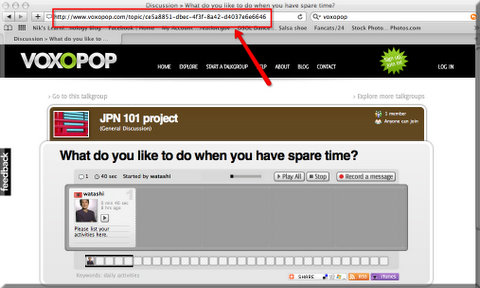
- Use this the URL to invite others to join your Talkgroup.
- or Click Invite Others to join.
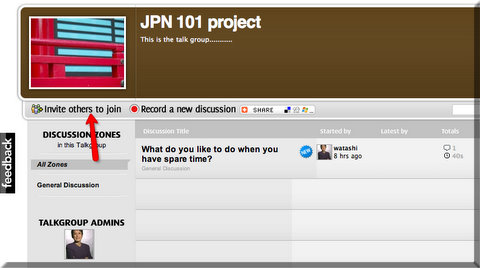
- To create another discussion title, click Record a new discussion and repeat the steps from #19.
Additional Resources and Works Cited
Activity Management
- Go to STARTALK Classroom Video Collection. http://www.startalk.umd.edu/teacher-development/videos
- View Rebecca Wang’s class at Rutgers, The State University of New Jersey. http://www.startalk.umd.edu/teacher-development/videos/2009/Rutgers-Chinese
- List the objectives of her lesson.
- Describe how the objectives are met and which standards were addressed.
- Go to Voxopop Education and Languages groups http://www.voxopop.com/explore/groups/cat/3cbe3244-1d8a-4002-ab20-1a920878c7d8 to explore the usage examples of Voxopop.
- List the effectiveness and ineffectiveness of the Voxopop examples for languages class use.
- Come back to the classroom video and explain the potential use of Voxopop to help to meet the objectives of RebeccaWang’s class.
- List what kind of tasks would be appropriate for Rebecca Wang to help meet her objective using Voxopop.
- Explain how to design Voxopop tasks for Rebecca Wang’ s students focused on student collaboration.
- Describe how to assess students’ learning progress performed in Voxopop.
- Develop an example of one activity for you daily lesson plan using Voxopop.
- Write goals and objectives for your activity.
- Identify the task your students will be performing.List standards addressed in your activity and rational.
- Describe how students will be collaborating.
- Explain how your students’ performance will be assessed.