

OverviewInstructionsResourcesActivity Management
A VoiceThread is a collaborative, multimedia slide show that holds images, documents, and videos and allows people to navigate pages and leave comments in 5 ways – using voice (with a mic or telephone), text, audio file, or video (via a webcam). Share a VoiceThread with friends, students, and colleagues for them to record comments too, all with no software to install.
Units |
Audio Tools, Presentation Tools, Video Tools |
Duration |
2 hours |
Standards |
Communication, Communities |
LEVEL |
Advanced, Beginner, Intermediate |
WEBSITE |
Visit VoiceThread Website |
OS |
PC or Mac |
PREREQUISITES
- Basic use of the Internet
- Ability to setup an account online
- Ability to set up and use a microphone on a computer
OBJECTIVES
At the end of the lesson, workshop participants will be able to:
- Describe what “Voice Thread” is
- Choose language tasks that would be appropriate for their students
- Sign up and create their own “Voice Thread”
- Explain how to create tasks that are focused on student collaboration
- Share their “Voice Thread” online
- Describe how they will assess students’ learning progress
- Demonstrate an example of one activity using “Voice Thread” in alignment with the Standards for Foreign Language Learning
MATERIALS NEEDED
- Voice Thread Tutorial
http://voicethread4education.wikispaces.com - Internet access
- Microphone
- Images to Upload
- Realia Project Image Database
[http://www.realiaproject.org] - Modern Foreign Languages Image Bank [http://www.ltscotland.org.uk/mfle/resources/imagebank/index.asp]
- Baidu.com (Chinese)
[http://www.baidu.com/]
Step-By-Step Instructions
- Go to http://voicethread.com
- Click Create tab on the top.
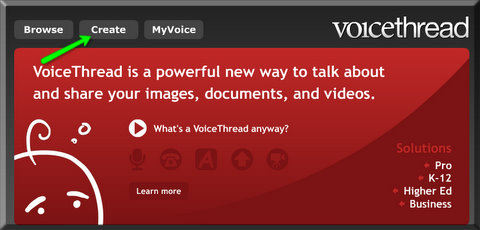
- Click Register below the Sign in box.

- Provide the information. Click Register.

- Go to the e-mail account you just provided and get your user name and password.
- Come back to the home page http://voicethread.com/ .
- Click the Create tab on the top.
- Type your e-mail address and password. Click sign in.

- Once you are logged on, note the three tabs (upload, comment, share) on your left. Click upload.
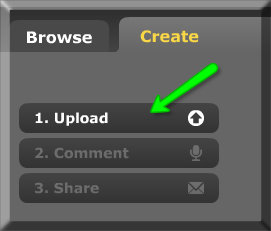
- Click my computer if you have images you would like to use: downloaded from The REALIA Project http://www.realiaproject.org/, for example on your computer. Click my media if you have images on Flicker/Facebook or would like to use free images from The New York Public Library.
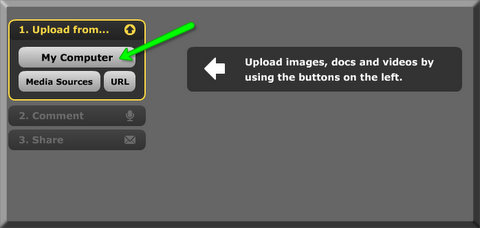 http://www.realiaproject.org/, for example on your computer. Click “my media” if you have images on Flicker/Facebook or would like to use free images from The New York Public Library. ” width=”482″ height=”228″>
 - Click an image on your computer (Hold control/apple key to select more than one images) and click select.
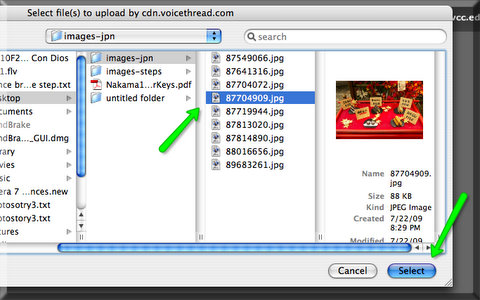
Now you should see the image uploaded in the box.
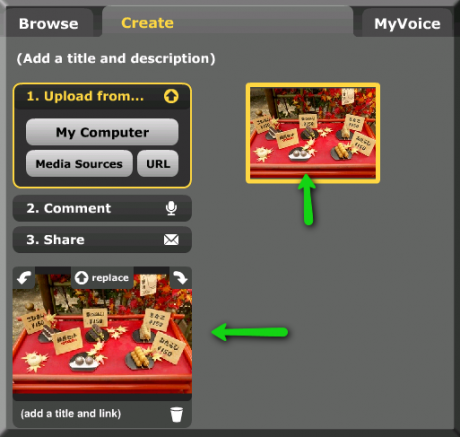
- To add a comment on an image, Click on the Comment tab on your left. You should see a larger image window now.
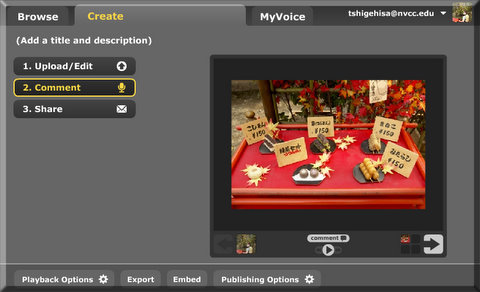
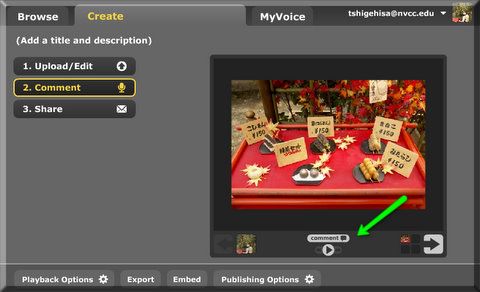
- Click Comment centered underneath the larger image window
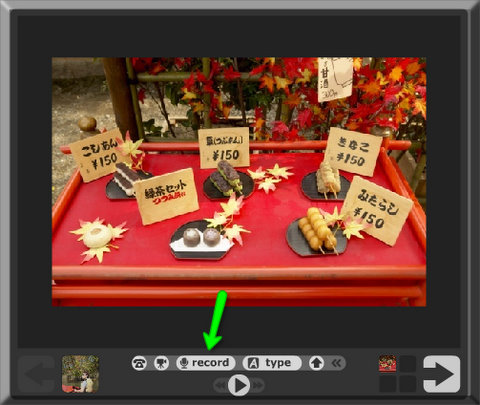
You should see four different ways to comment on your image: phone, video, audio and typing.
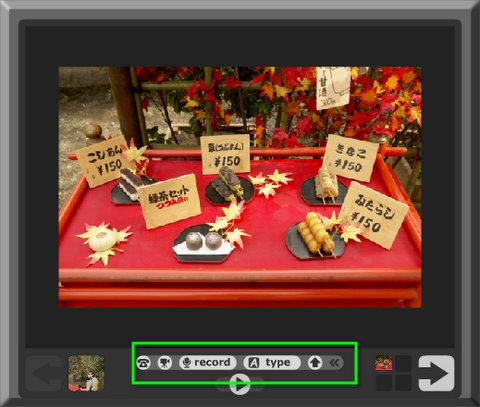
- Click on record to add a recording of your voice.
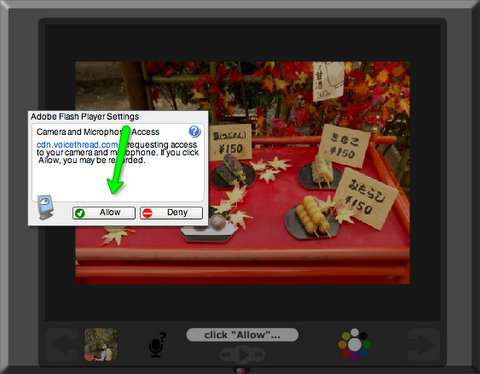
- Click Allow when the small window comes up and asks for access to your microphone.
- Voice Thread automatically starts recording by showing OK. Start talking in red.
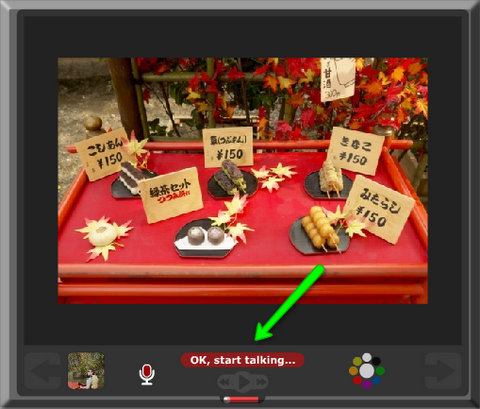
- Click the same button OK, start talking (you might see Stop recording) to stop the recording. Voice Thread automatically plays back the sound you just recorded.
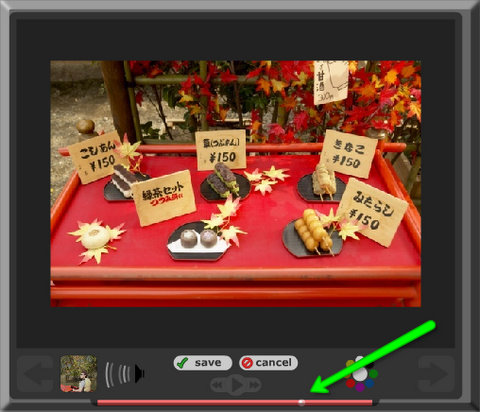
- Choose save when you are happy with your recording.
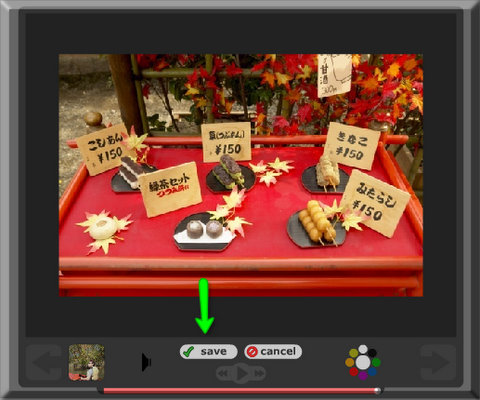
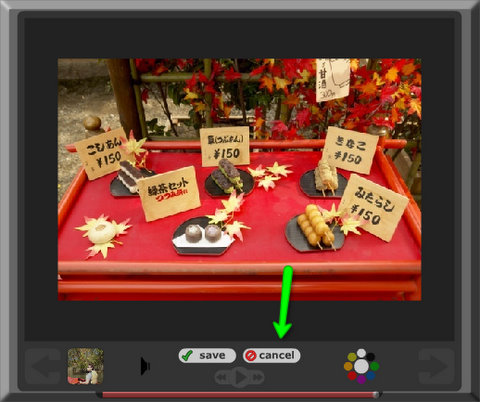
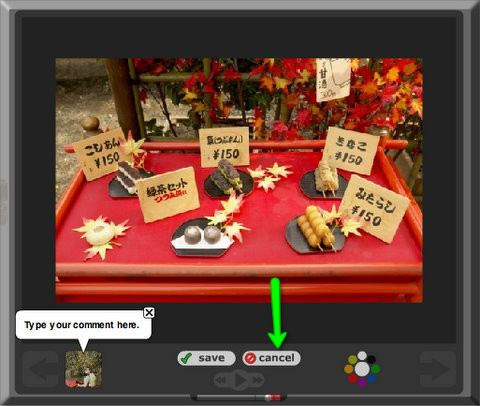
- Choose cancel if you would like to record again and repeat the steps from #14.
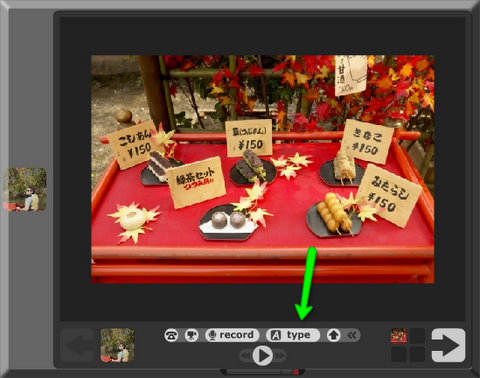
- Click type to write text.
- Type in your comment in the box.
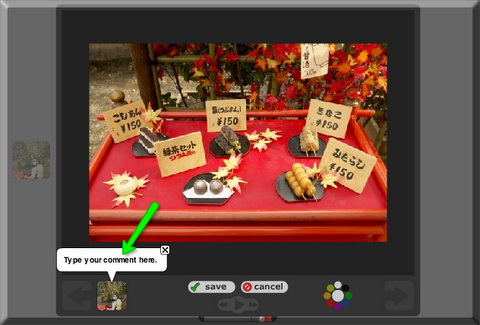
- Save when you are happy with your text.
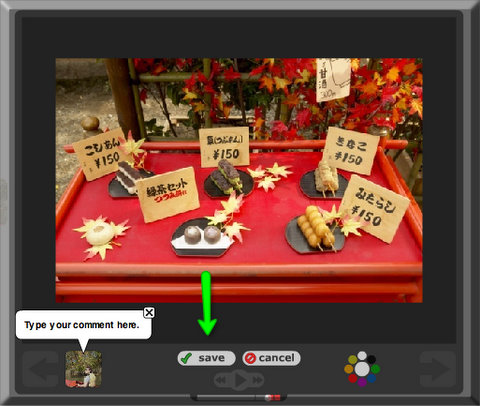
- Choose cancel if you would like to rewrite your comment and repeat the process from #21.
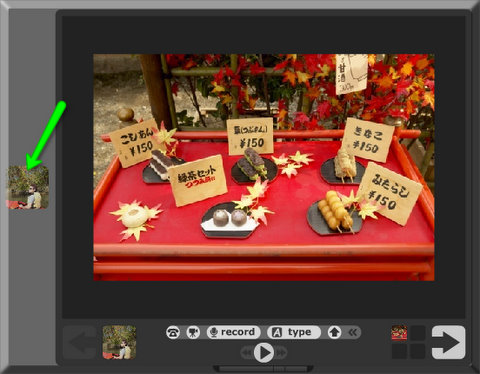
- Click your profile surrounding the image to play your recording and see your comment. You should be able to hear your recording, and see your comment.
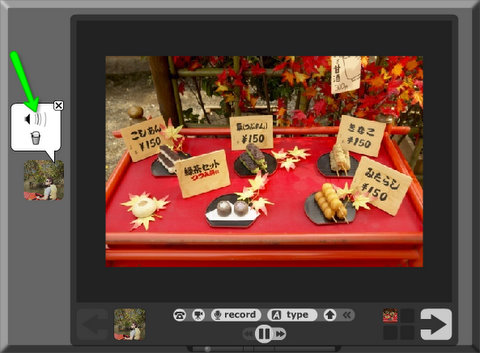
- Click the trash can icon to delete your comment as necessary. You can delete an individual recording (if you recorded more than once) and a text (if you commented more than once) separately.
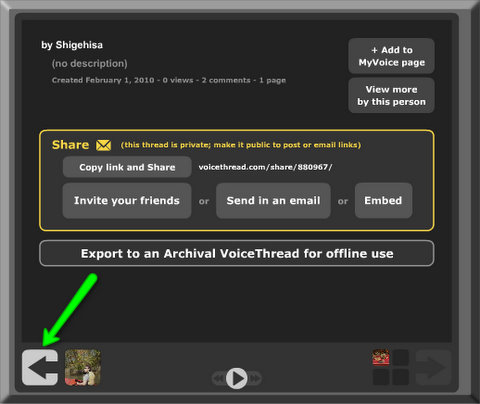
- Click this arrow button to go back to your project when this window opens.
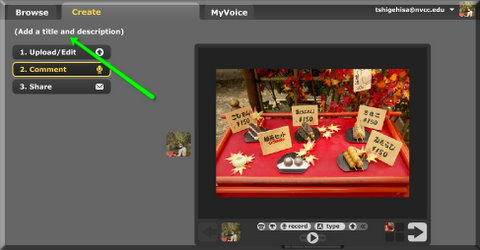
- When you are done, save your project by clicking Add a title and link.
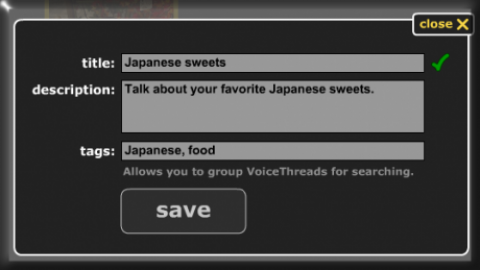
- Type in your title and click save.
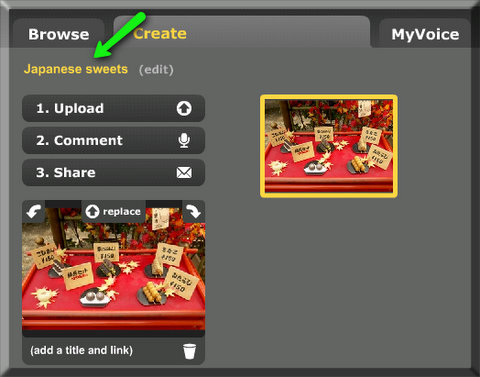
- Now you should be able to see your project with the titlle.
- Click “Embed” to share your “Voice Thread”.
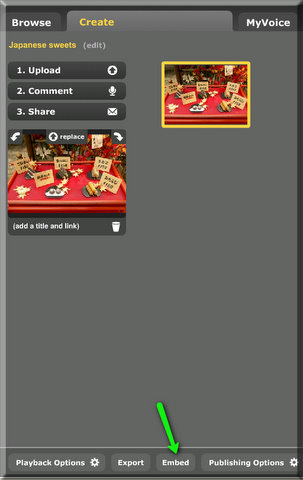
- You should be able to see the URL in the box. This is the webpage address where your project is located.
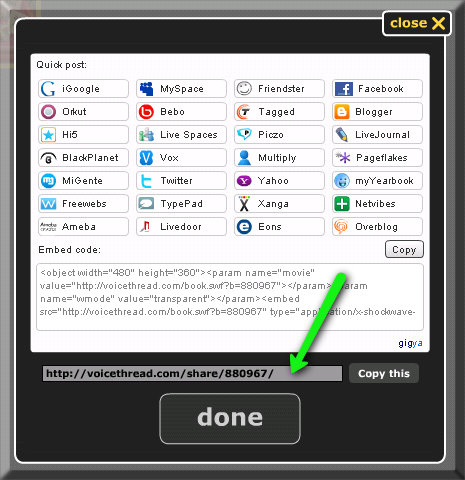
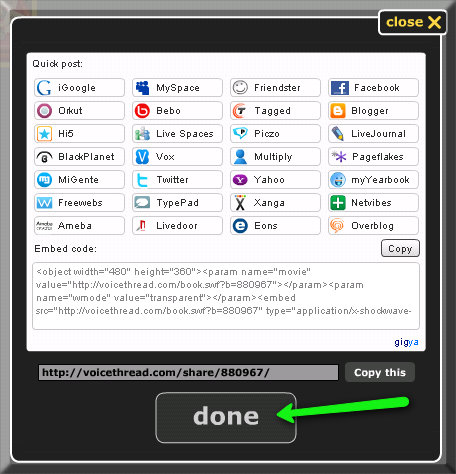
- Click done after you copy the URL.
- Send the URL for viewing and/or a participation in your project.
You can limit access to your project by changing the setting from default to your own one.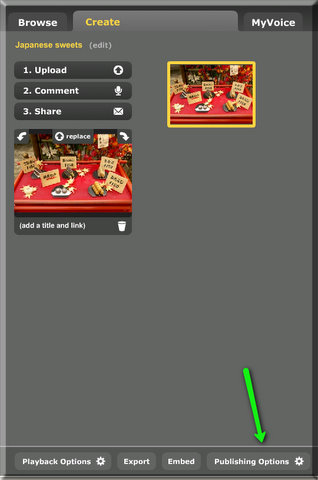
- Click each box if you would like the setting.
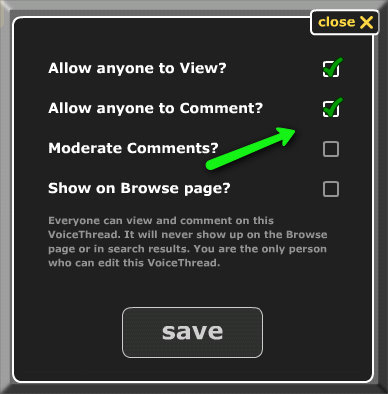
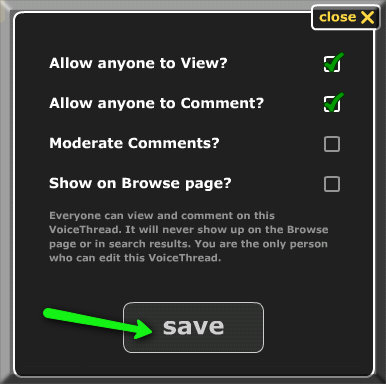
- Click save when you are done.
- Click My Voice.

- Now you should be able to see your project.
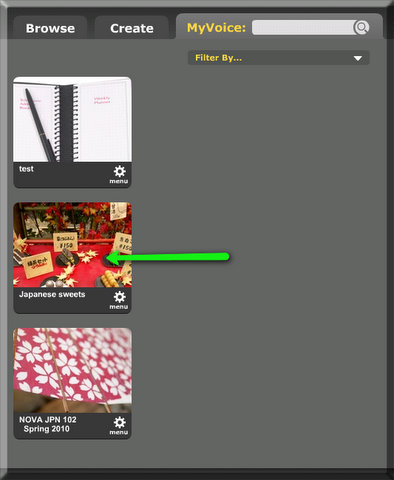
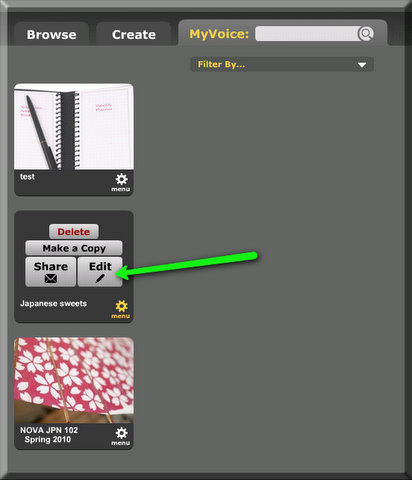
- Click menu when you would like to add photos for more conversation, for example.
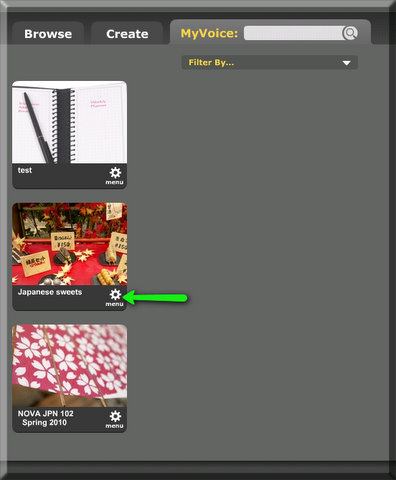
- Click Edit to modify your project.
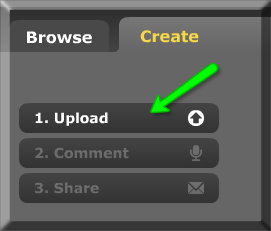
- Click Upload to insert another image and repeat the steps from # 9.
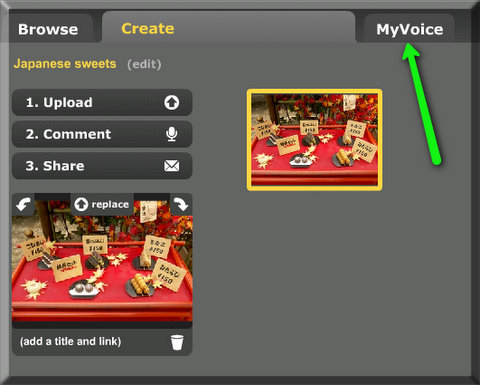
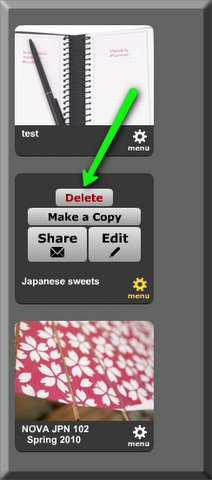
- In order to delete your project, click MyVoice tab from anywhere.
- Click Menu.
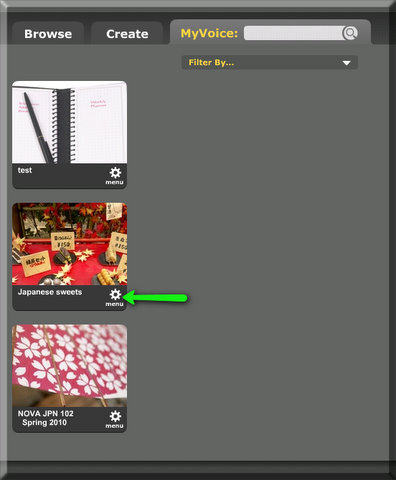
- Click Delete.
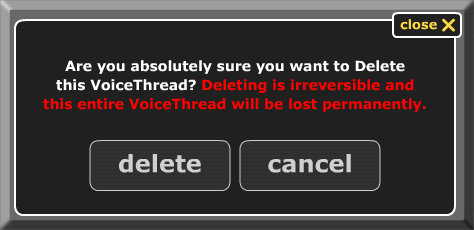
- Click Delete if you are sure to want to delete.
Additional Resources and Works Cited
Activity Management
- Go to STARTALK Classroom Video Collection. http://www.startalk.umd.edu/teacher-development/videos
- View Sun Burford ‘s class at OneWorld Now!http://www.startalk.umd.edu/teacher-development/videos/2009/OneWorldNow-Chinese
- List the objectives of her lesson.
- Describe how the objectives are met and which standards were addressed.
- Go to What’s a Voice Thread anyway? http://voicethread.com/#u405199.b409.i6394
- Watch the VoiceThread on “Digital Library/Foreign Languages” to explore “Voice Thread” examples.
- List the effectiveness and ineffectiveness of the “Voice Thread” examples.
- Come back to the classroom video and explain the potential use of “Voice Thread” to help meet the objectives of Sun Burford’s class.
- List what kind of tasks would be appropriate for Sun Burford’s students to help meet her objective using “Voice Thread”.
- Explain how to design “Voice Thread” tasks for Sun Burford’s students focused on student collaboration.
- Describe how to assess students’ learning progress performed in “Voice Thread”.
- Develop an example of one activity for your daily lesson plan using “Voice Thread”.
- Write goals and objectives for your activity.
- Identify the task your students will be performing.
- List standards addressed in your activity and rational.
- Describe how students will be collaborating.
- Explain how your students’ performance will be assessed.
Thank you Ms. Shigehisa, very informative!