

OverviewInstructionsResourcesActivity Management
Google Docs is an easy-to-use online word processor, spreadsheet and presentation editor. You can use it to create, store and share your documents instantly, securely, and collaborately online in real time.
Units |
Collaborative Tools, Presentation Tools |
Duration |
2 hours |
Standards |
Communication, Communities |
LEVEL |
Advanced, Beginner, Intermediate, Novice |
WEBSITE |
Visit Google Docs Website |
OS |
PC or Mac |
PREREQUISITES
- Basic use of Internet
- How to upload download a file
OBJECTIVES
At the end of the session, the participants will be able to
- Explain what Google Docs is and why and how they can use Google Docs to teach languages.
- List the kind of tasks that would be appropriate for their students using Google Docs.
- Explain how to design tasks focused on student collaboration.
- Give an example of one activity in a lesson plan using Google Docs in alignment with the Standards for Foreign Language Learning.
- Describe how to assess students’ learning progress using Google Docs.
- Critique the effectiveness for language teaching of other Google Docs projects.
[youtube http://www.youtube.com/watch?v=eRqUE6IHTEA]
MATERIALS NEEDED
Internet connection
Step-By-Step Instructions
- Go to docs.google.com
- If you don’t have an Google Account, click on the Get Started button
- Follow the online instructions to complete the sign up process.
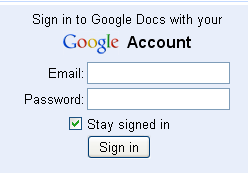
- Once you have created a Google Account, you can click on the Sign In link.
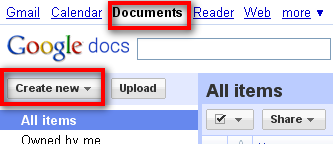
- Click on the Documents link at the top of the screen and then click on the Create New button.
- Google Docs include Documents, Presentations (like a PowerPoint), Spreadsheet, and Forms
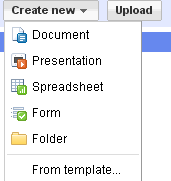
- Click on the Document link to create a new Word document.
- Click on the untitled area to give a name to your new document when the Enter a new document name pop up window opens. Click on the OK button when you are done.
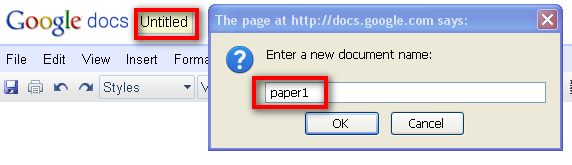
- Google Docs’ document tool bar is similar to the tool bar in other Microsoft products.

- Start to type in the body area. You can copy, paste, import texts to this area as well. Use it just like you do with Microsoft Word.
- Click on the Save button to save your document periodically. Click on the Save & Close button when you are ready to close the file

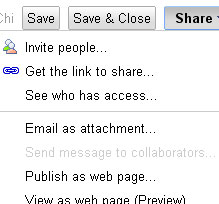
- When you are done and ready to share your file with others, click on the Share button. There are different ways to share your document: invite people by sending them an emal, publish the doucment as a web page and then send the link to others, etc.
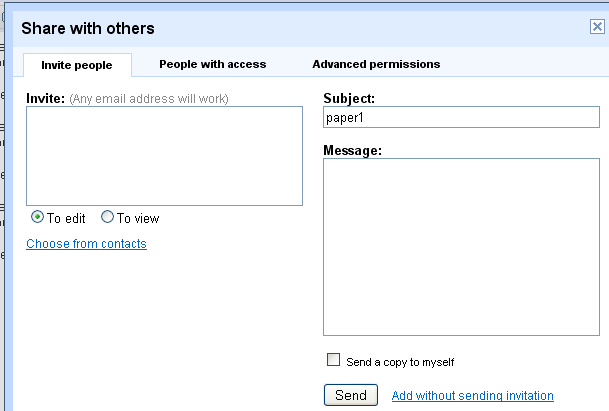
- To invite people, enter the email addresses of whomever you’d like to add, select the button To edit or To view depending on what kind of access you’d like them to have, and then click on the Send button to send. Your document is now shared.
- The procedures for creating a new presentation or a new spreadsheet are very similar to that of creating a new Google document.
- You can also create online forms by clicking on Form – these forms can be used for polls, surveys or registration forms.
- Click on the Form link.
- In the form template that opens, you can add any questions and options you’d like.
- Click Email this form once you’ve finished adding your questions.
- Add the email addresses of the people to whom you want to send this form.
- Click Send.
Additional Resources and Works Cited
Activity Management
None