

OverviewInstructionsResourcesActivity Management
Wikis are an effective collaboration and organizational tool to archive student and instructor coursework, lessons, videos and other instructional materials. Wikispaces is a free and easy to use wiki resource currently used by faculty members, instructional technologists and students in a variety of fields.
[youtube https://www.youtube.com/watch?v=-dnL00TdmLY&w=640&h=480]
Units |
Collaborative Tools, Online and Social Media Resources, Presentation Tools |
Duration |
3 hours |
Standards |
Communication, Communities, Cultures |
LEVEL |
Advanced, Beginner, Intermediate, Novice |
WEBSITE |
Visit Wikispaces Website |
OS |
PC or Mac |
PREREQUISITES
- basic use of Internet
- know how to copy and paste
- know how to download a file
- know how to upload a file
- know how to create folders
- know how to send an email attachment
OBJECTIVES
At the end of the lesson, participants will be able to:
- Give rationale for use of Wikispaces in the language classroom
- Create a Wiki User account
- Create a new web page in wiki
- Insert images, media, videos in wiki
- Add external links to wiki
- Manage a wiki site and pages
- Invite others to join a wiki and join others’ wikis themselves
- Embed widgets on a wiki page
- Participate in a wiki discussion forum
MATERIALS NEEDED
Internet access
Step-By-Step Instructions
Sign up to Wikispaces
- Go to www.wikispaces.com
- In the Get Started area, type in a user name and a password you are going to use for wikispaces account, put in a valid email address, and then click on the Get Started button to create your account.
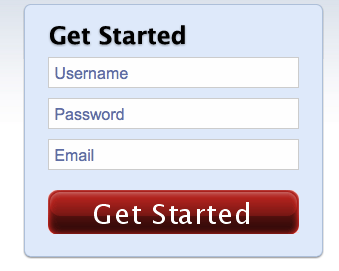
- Follow the online instruction to complete the sign up process
Sign in to Wikispaces
- Go to www.wikispaces.com
- Click on the Sign In link next to Already a member.

- Put in the user id and password you used when signed up your account to complete the sign in process.

Create a new wiki
- Click on the Create a New Wiki link at the top left of the screen after you sign in to Wikispaces

- Name your new Wiki and choose your Wiki Type

- Read the directions when the Getting Started With Your Wiki dialogue window appears and then turn it off when you are done.

Edit your Wiki
- Click on the Edit tab, highlight the contents on the page, delete them, and then put your own content on that page.
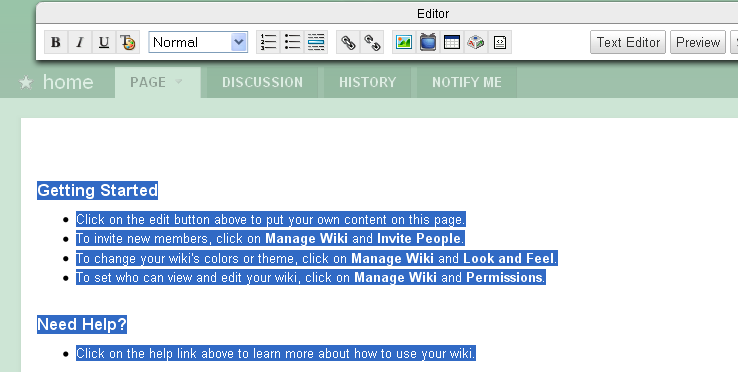
- You can format it with bold, underline, italics, headings, and more. Once you are done editing, click Save.

Add links to your page
- Click on the Edit tab.
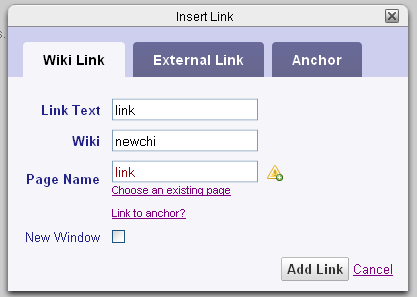
- Highlight the text you would like to link and click on the link icon in the toolbar.

- The Insert Link window appears which allows you to create a link to another page in your space or another website
- Click on the Add Link button
Add images to your Wiki
- Click on the Edit tab
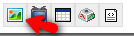
- Click on the graphic icon
- Browse your computer for the image you would like and click Open
- Upload the chosen picture or file
- Place your cursor where you would like the image on the page
- Double click the image or file to place it on the page.
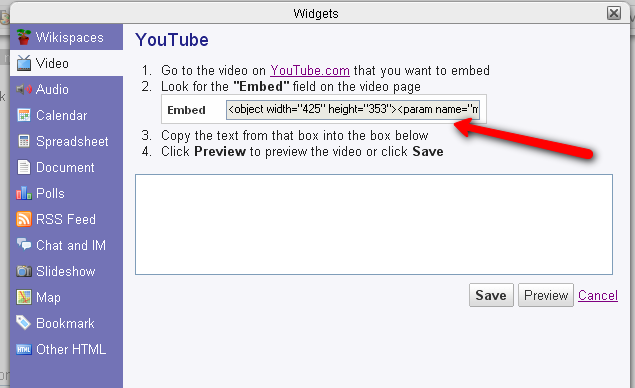
Add media to your Wiki
- Click on the Edit tab
- Go to the icon of the TV in the toolbar
- Choose the type of object you’d like to embed
- Follow the instructions for embedding each object
- Click Save
- To invite new members, click on Manage Wiki and Invite People.
- To change your wiki’s colors or theme, click on Manage Wiki and Look and Feel.
- To set who can view and edit your wiki, click on Manage Wiki and Permissions.
Additional Resources and Works Cited
Activity Management
- Show a sample wiki site
- Ask users to explain how they can use wiki in their classrooms
- Show the online tutorials
- Have participants create their own wiki site
- Have users share their wiki sites online
- Have users talk about an example of one activity for their daily lesson plan using “Wikispaces” in alignment with the standards for language learning
- Discuss how to assess student performance